Bloom |
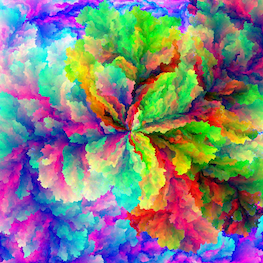
A unique color for every pixel.
This gallery provides an illustrated introduction to Bloom. It is designed to help you get started by:
- • Guiding you through the main features of Bloom
- • Explaining the Bloom size menu options, with brief mathematical context
- • Visually documenting the available presets
- • Demonstrating how a normal map can be applied
- • Show you how to save and reload customized settings
Create Bloom Menu
In the Bloom tab, tap Create Bloom… at the top of the view to get started.

Create New Menu Item
In the menu that appears, tap Create New… to select the size of your new bloom. The Load Default menu option can always be used to restore the default startup bloom image.

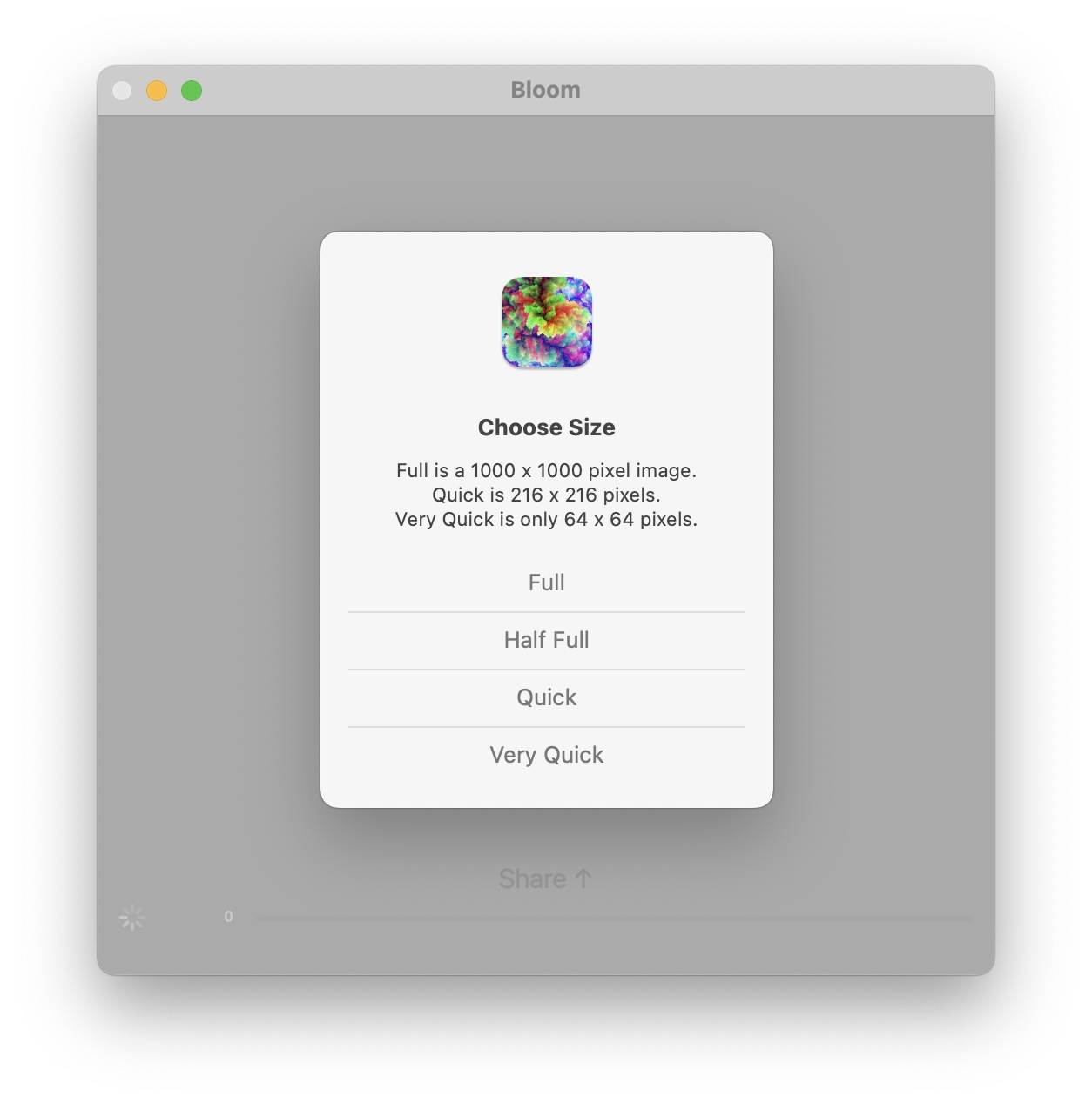
Choose Bloom Size Menu Items
Select the image size. Dimensions are shown as width × height in pixels.

This is the interesting part because the size of the image is related to the total number of colors in the image. The menu items are determined by a relation between image size and the number of shades per red, green and blue (RGB) color channel.
To give every pixel in an N×N image its own unique RGB color, we need enough color variations. With M shades per color channel (red, green, blue), we get M³ total colors. So we choose M so that M³ matches the number of pixels, N²:
N² = M³
As it turns out all such possible pairs of are of the form:
(N, M) = (t³, t²), for t = 1,2,3,…
For such a pair, N² = M³:
N² = (t³)² = t⁶ = (t²)³ = M³
Conversely, suppose integers \(n,m\) satisfy \(n^2 = m^3\).
Write the prime factorization of \(m\) as \(m = \prod p_i^{a_i}\). Then
\[ n^2 = m^3 = \prod p_i^{3 a_i}. \]Since \(n^2\) has only even exponents in its prime factorization, each exponent \(3a_i\) must be even. This forces \(a_i\) to be even, so \(m\) is a perfect square: \(m = t^2\).
\[ n^2 = (t^2)^3 = t^6, \qquad\text{so } n = \pm t^3. \]Therefore all solutions are
\[ (n,m) = (\pm t^3,\; t^2), \qquad t\in\mathbb{Z}. \]Now its possible to list all possible images sizes for the first 16 integers, which include all the menu options in red.
Mapping t → (t³, t²) for t = 1…16:
| t | t³ | t² |
|---|---|---|
| 1 | 1 | 1 |
| 2 | 8 | 4 |
| 3 | 27 | 9 |
| 4 | 64 | 16 |
| 5 | 125 | 25 |
| 6 | 216 | 36 |
| 7 | 343 | 49 |
| 8 | 512 | 64 |
| 9 | 729 | 81 |
| 10 | 1000 | 100 |
| 11 | 1331 | 121 |
| 12 | 1728 | 144 |
| 13 | 2197 | 169 |
| 14 | 2744 | 196 |
| 15 | 3375 | 225 |
| 16 | 4096 | 256 |
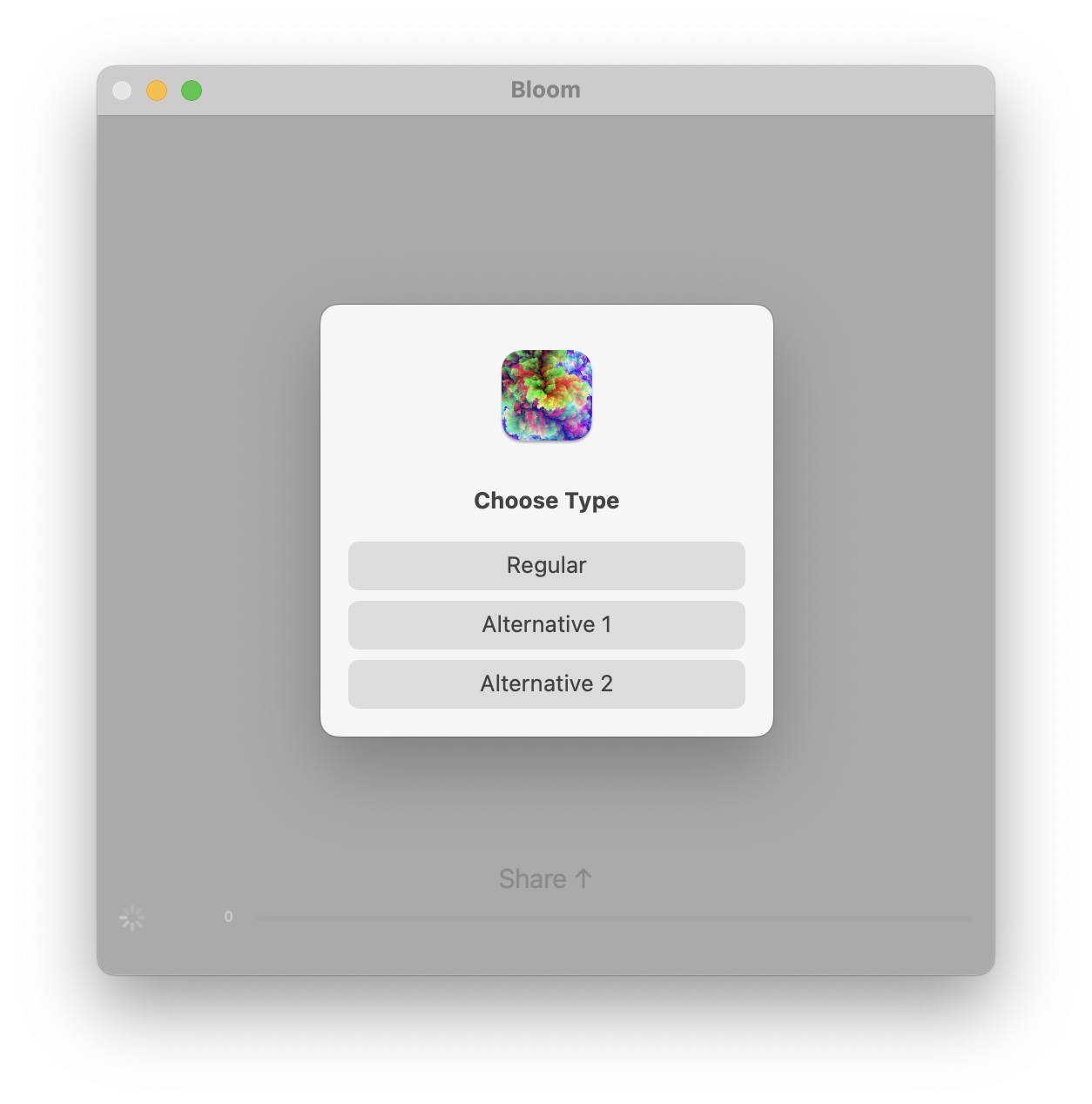
Choose Bloom Type
Three different variations are available.
After you select a type the image generation will begin, accompanied by music, and the button will become a Cancel button. If the music is not desired you can turn it off in the Music tab, or adjust its volume.

Even before image generation is finished you can switch to the Sphere tab to see the application of the image to a 3D shape.
In the Sphere tab, you can customize the shape using several groups of parameters:
• Shape Geometry: Controls the actual form of the shape. Available shape geometries: sphere, torus, cube, cylinder, plane, capsule, pyramid, star, trefoil knot, exclamation heart and heart.

• Material and lighting properties: Determine how the shape looks under light—its color, shininess, reflectiveness, and whether it appears matte, glossy, or metallic.
• Texture filters: Let you modify the texture applied to the shape, such as adjusting colors or adding a wide variety of effects: such as turning it black and white or grayscale, inverting its colors, or emphasizing edges.
• Rotation transform: Affect the shape’s orientation relative to the global coordinate system, namely the coordinate system for which the axes are drawn in the lower left corner of the view:

• Texture transform: Affect how the texture is positioned on its surface, relative to its own coordinate system.
• Presets Menu: The presets menu provides you with several sets of parameter values that you can start with and then tweak further. Use the Defaults menu item to reset all parameters to the state of Bloom on first launch.


![]() |
Defaults Balanced lighting and smooth shading for neutral, all-purpose rendering. |
![]() |
Bevel Strong normal mapping and highlights create a crisp, beveled surface. |
![]() |
Gibbous PBR lighting that illuminates most of the sphere while preserving shadow depth. |
![]() |
Crescent Back-lit PBR shading leaves only a thin illuminated crescent. |
![]() |
Glow Subtle emission causes the surface to glow from within. |
![]() |
Quarter High-angle lighting produces a sharp light-to-shadow transition. |
![]() |
Matte Diffuse shading with no specular shine for a flat, non-reflective look. |
![]() |
Edge Intense rim lighting emphasizes the sphere’s silhouette. |
![]() |
Nearly New High-contrast lighting with deep shadows and sharp highlights. |
![]() |
New Metallic PBR surface with controlled roughness and subdued reflections. |
![]() |
Specular Glossy metallic reflections with softened highlights. |
![]() |
Spotlight Focused light isolates a bright region against deep shadow. |
Apply Normal Map to Emboss Image
A normal vector is a vector perpendicular to a given object at a particular point.

Each blue arrow represents a surface normal: a single normal (e.g., at one point) defines the orientation of the surface at that location, while the collection of normals across the curved surface illustrates how normals vary with curvature.
A normal map affects lighting by changing the surface normal used in the law of reflection: the angle which the incident ray makes with the normal (\( \theta_i \)) is equal to the angle which the reflected ray makes with the same normal (\( \theta_r \)).

Illustration of the law of reflection: the incident angle \( \theta_i \) equals the reflected angle \( \theta_r \), measured relative to the surface normal.
In Bloom a normal map is generated using the texture itself via filtering. The intensity of the effect is controlled by the normal slider in the Material Properties section of the Sphere tab. The normal map causes light to reflect as if the surface were beveled.

Embossing effect with the normal slider at 0 (left) versus 1 (right), all other properties kept equal.
Bloom Documents

Save Bloom Documents from the Share menu to preserve configuration information for 3D shape rendering.
Bloom Documents support Quick Look Thumbnails. Quick Look thumbnails are small preview images that the operating system generates for files so you can see what’s inside without opening them. For example, when you browse your files in Finder, or Files app, each Bloom Document or image may have a tiny preview showing the content or a miniature version of the 3D shape and texture. This makes it easier to identify files at a glance and quickly find what you’re looking for.
Bloom Documents are created using the Share menu item Save Bloom Sphere Document, and reloaded using the Share menu item Load Bloom Document: